Connect OpenClaw to Gmail
Proof
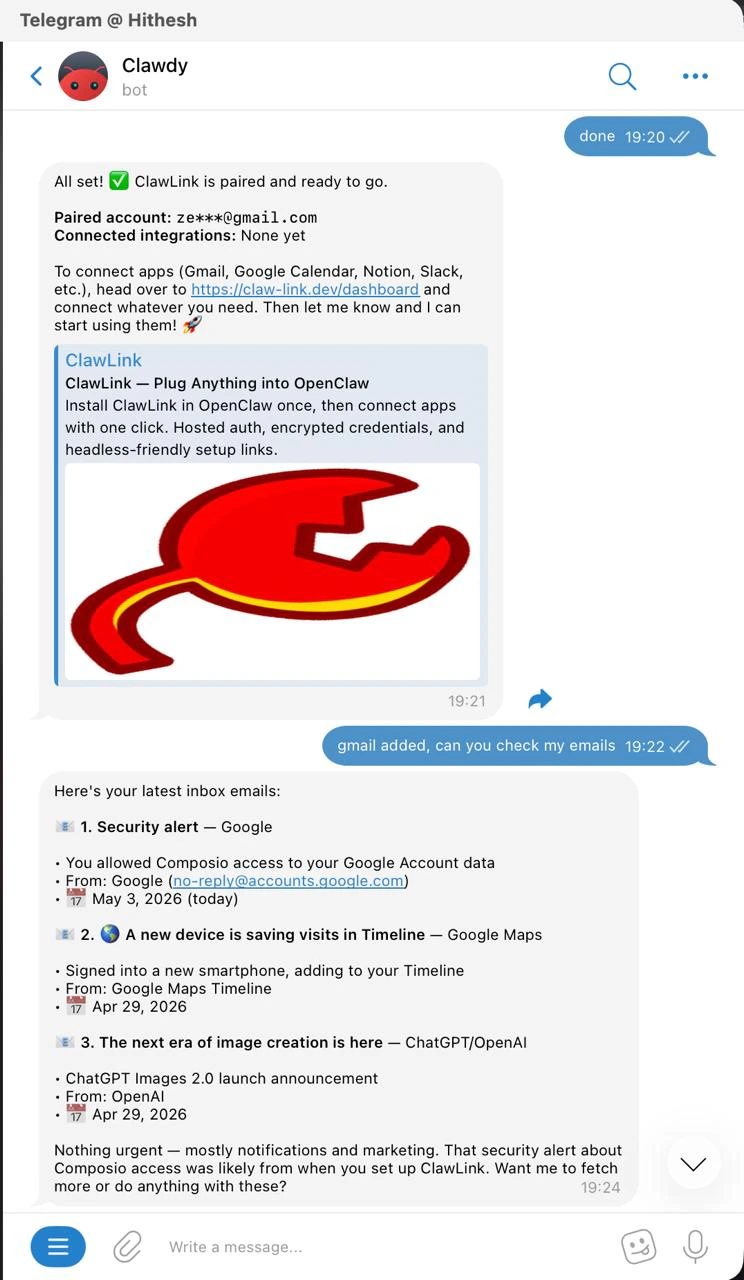
Here is a real example of the flow working:1) Pair ClawLink in OpenClaw

2) Connect Gmail and read emails
Copy and paste this
Simple setup
1
Install the plugin
Run the command above in OpenClaw.
2
Pair ClawLink
Ask OpenClaw to set up ClawLink or pair ClawLink.
3
Approve in your browser
Open the link OpenClaw gives you and approve the device.
4
Connect Gmail
Go to the ClawLink dashboard and connect Gmail.
5
Start using it
Go back to OpenClaw and ask it to use Gmail.
Example prompts
- “Draft a reply to the latest email from Sarah”
- “Summarize my unread emails from today”
- “Find the thread about pricing”
- “Write a follow-up email from these notes”
If it does not work
- Start a new OpenClaw chat after installing the plugin
- Make sure you approved the browser pairing flow
- Make sure Gmail is connected in the ClawLink dashboard
Links
- Dashboard: https://claw-link.dev/dashboard
- OpenClaw docs: https://docs.claw-link.dev/openclaw
- Verify ClawLink: https://claw-link.dev/verify