> ## Documentation Index
> Fetch the complete documentation index at: https://docs.claw-link.dev/llms.txt
> Use this file to discover all available pages before exploring further.
# Connect OpenClaw to Slack
> Install ClawLink, pair it, connect Slack, and start using it from OpenClaw.
# Connect OpenClaw to Slack
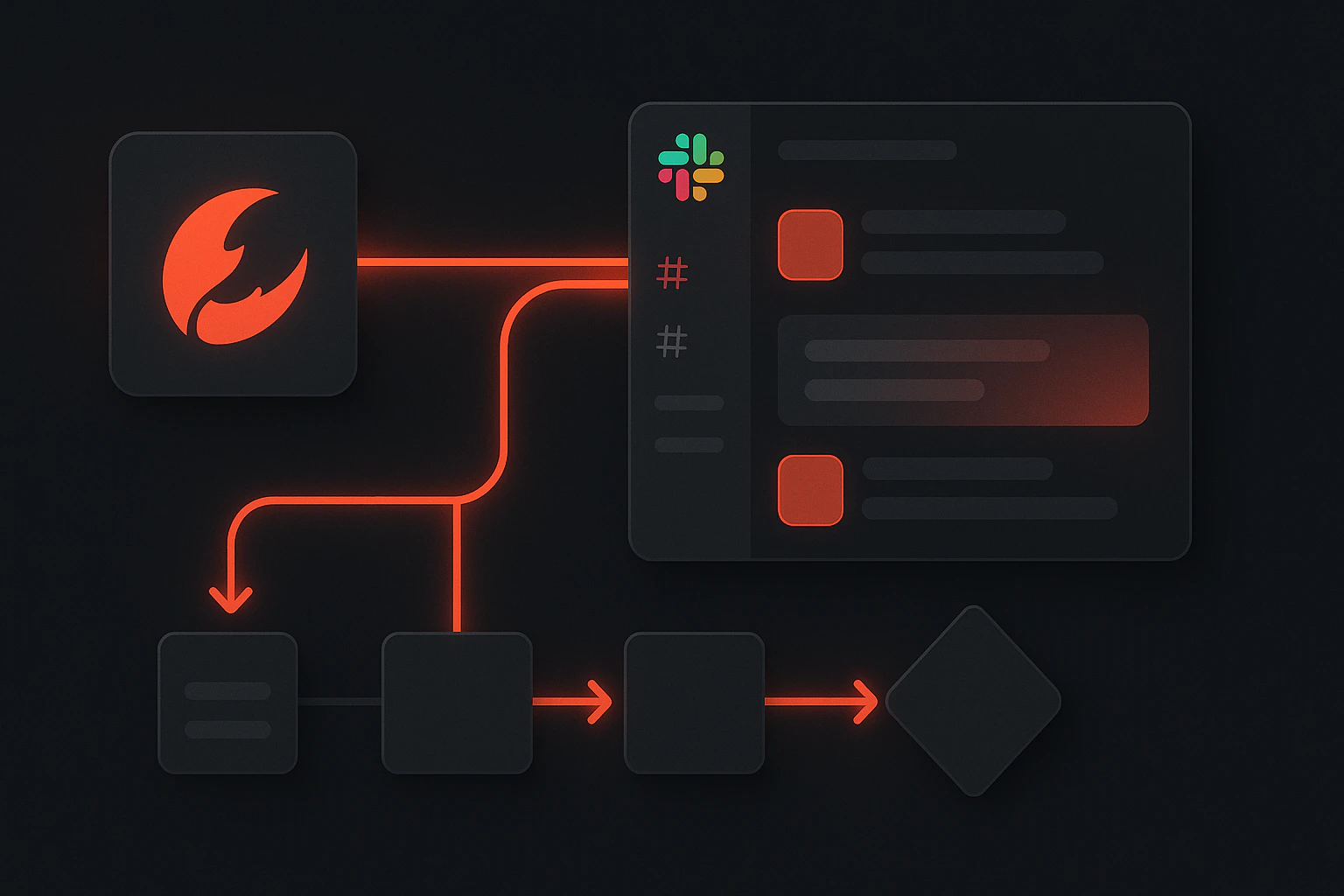 Use this if you want OpenClaw to send messages, post updates, and help with Slack workflows.
## Copy and paste this
```bash theme={null}
openclaw plugins install clawhub:clawlink-plugin
```
## Simple setup
Run the command above in OpenClaw.
Ask OpenClaw to set up ClawLink or pair ClawLink.
Open the link OpenClaw gives you and approve the device.
Go to the ClawLink dashboard and connect **Slack**.
Go back to OpenClaw and ask it to use Slack.
## Example prompts
* "Send a message to #general with today's update"
* "Post this summary to the product channel"
* "Find the latest Slack discussion about onboarding"
* "Draft a Slack message from these notes"
## If it does not work
* Start a **new OpenClaw chat** after installing the plugin
* Make sure you approved the browser pairing flow
* Make sure Slack is connected in the ClawLink dashboard
## Links
* Dashboard: [https://claw-link.dev/dashboard](https://claw-link.dev/dashboard)
* OpenClaw docs: [https://docs.claw-link.dev/openclaw](https://docs.claw-link.dev/openclaw)
* Verify ClawLink: [https://claw-link.dev/verify](https://claw-link.dev/verify)
Use this if you want OpenClaw to send messages, post updates, and help with Slack workflows.
## Copy and paste this
```bash theme={null}
openclaw plugins install clawhub:clawlink-plugin
```
## Simple setup
Run the command above in OpenClaw.
Ask OpenClaw to set up ClawLink or pair ClawLink.
Open the link OpenClaw gives you and approve the device.
Go to the ClawLink dashboard and connect **Slack**.
Go back to OpenClaw and ask it to use Slack.
## Example prompts
* "Send a message to #general with today's update"
* "Post this summary to the product channel"
* "Find the latest Slack discussion about onboarding"
* "Draft a Slack message from these notes"
## If it does not work
* Start a **new OpenClaw chat** after installing the plugin
* Make sure you approved the browser pairing flow
* Make sure Slack is connected in the ClawLink dashboard
## Links
* Dashboard: [https://claw-link.dev/dashboard](https://claw-link.dev/dashboard)
* OpenClaw docs: [https://docs.claw-link.dev/openclaw](https://docs.claw-link.dev/openclaw)
* Verify ClawLink: [https://claw-link.dev/verify](https://claw-link.dev/verify)